
The yard map
The Yard section shows every board PropMesh can hear, in two layouts. Switch between them with Topology | Map.
Topology: is my mesh healthy?
Section titled “Topology: is my mesh healthy?”Boards are arranged by how many hops they are from the bridge, and every radio link is labeled with its signal strength:
| Line | Signal |
|---|---|
| green | strong (−60 dBm or better) |
| gray | ok |
| amber, dashed | weak (−75 dBm or worse) |
| red | lost |
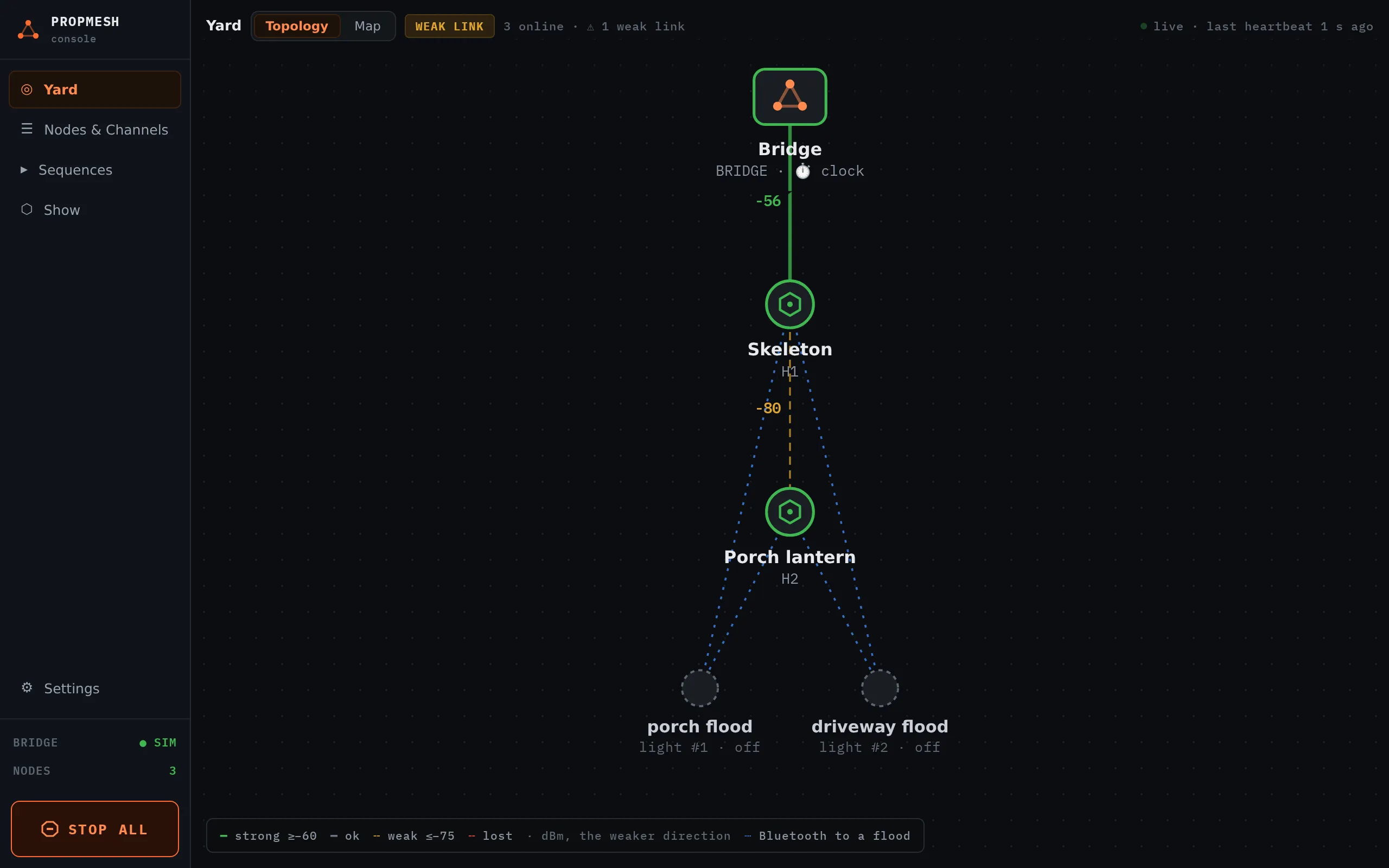
The badge at the top sums it up: HEALTHY, WEAK LINK or DEGRADED. Click a board for its details: what it hears, its uptime, memory, battery and firmware.
Map: where is everything?
Section titled “Map: where is everything?”The map is a drawing of your yard with each board placed where it really is. A weak link makes more sense once you can see that it crosses the house.
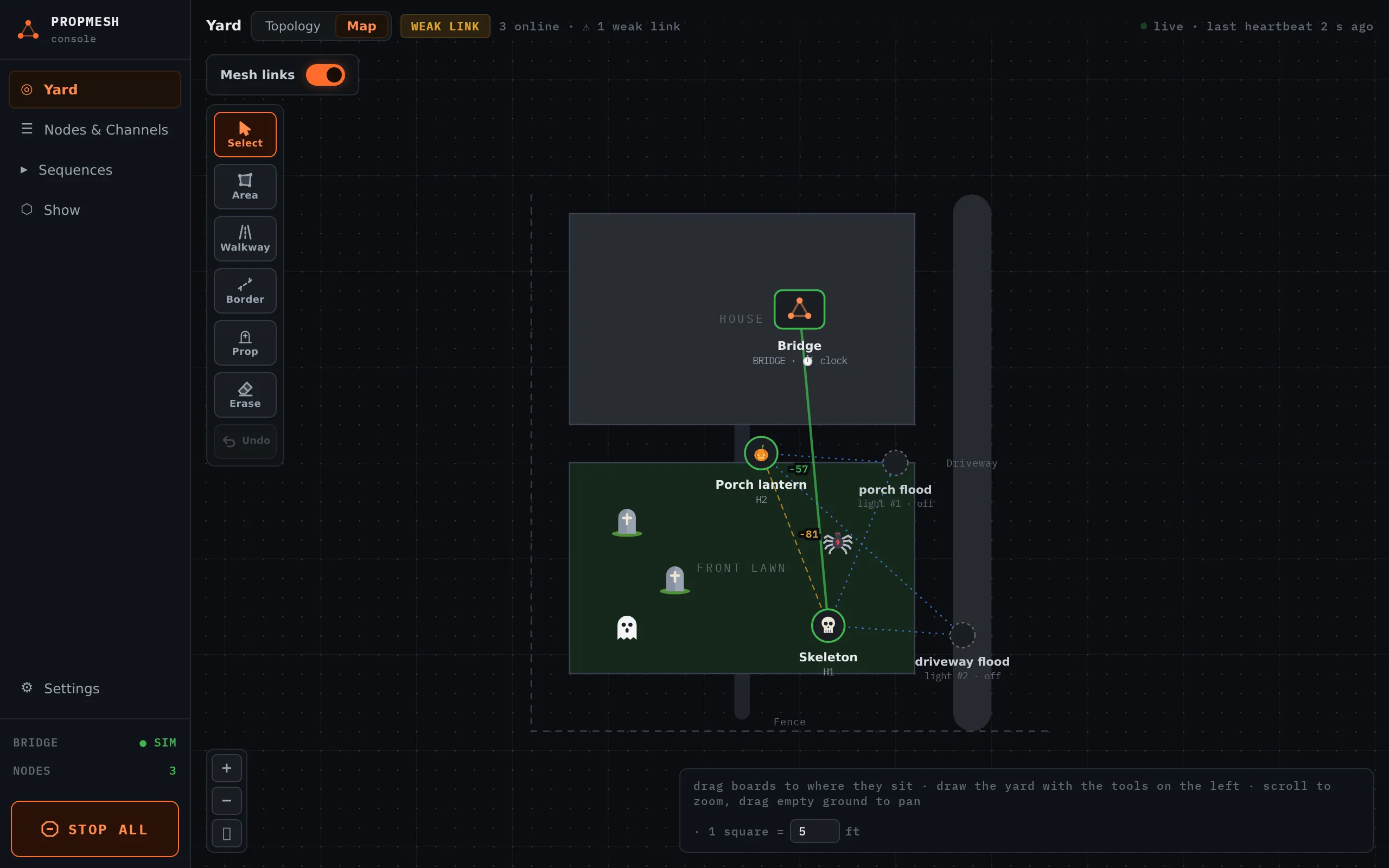
Draw the yard with the tools on the left:
| Tool | For |
|---|---|
| Area | the house, garage, flower beds, lawn. Click each corner, then click the first corner again to close the shape. |
| Walkway | paths and driveways. Click along it and double-click to finish. |
| Border | the property line, a fence |
| Prop | clip art (tombstones, skeletons, spiders, pumpkins, candles) to mark where things stand |
| Select | move things. Drag an edge to push it out. Double-click an edge to add a corner, or double-click a corner to remove it. |
| Erase | click something to remove it |
Pick a shape with Select to label it and change its color. Scroll to zoom, drag empty ground to pan, and press ⛶ to fit everything in view.
Place your boards by dragging them from the Not on the map yet bar onto the map. Click a placed board and pick a picture under DRAWN AS, and the board shows on the map as a skeleton, a ghost, a cauldron, a candle, and so on.